
The customer is changing PCs and wants everything “just as before”. Copying their documents is not enough: their settings, passwords and printers do not follow on their own. Here is what needs to be transferred, and how.
What “just as before” means
- Documents: Desktop, Documents, Pictures, Downloads… and the folders the customer created themselves.
- Software settings, stored in the hidden
AppDatafolder: browser profiles, email signatures, templates, dictionaries, the settings of each program. - Email: Outlook files (
.pst), sometimes stored outside the profile. - Saved passwords in browsers and in Windows.
- Printers and Wi-Fi.
- The software itself, which has to be reinstalled.
Why copying the folders is not enough
Copying C:\Users\name by hand loses the file permissions, gets stuck on open files and does not create the Windows account. Above all, Chrome, Edge and Windows passwords are encrypted with the old account’s password: copied as they are, they cannot be read on the new PC.
The old tool Windows provided for transferring files and settings disappeared with Windows 10. The Windows 11 backup tools rely on the Microsoft account and OneDrive: check what they really bring back before counting on them.
Before you start, with the customer
- Ask for their old Windows password: it is what allows their saved passwords to be recovered.
- Have them sync their browser with their Google or Microsoft account: it is the only guarantee for their website passwords.
- Note down their Wi-Fi keys, or ask the customer for them.
- Find their paid software licences: they are reactivated on the new PC, not copied.
With MBI Clone
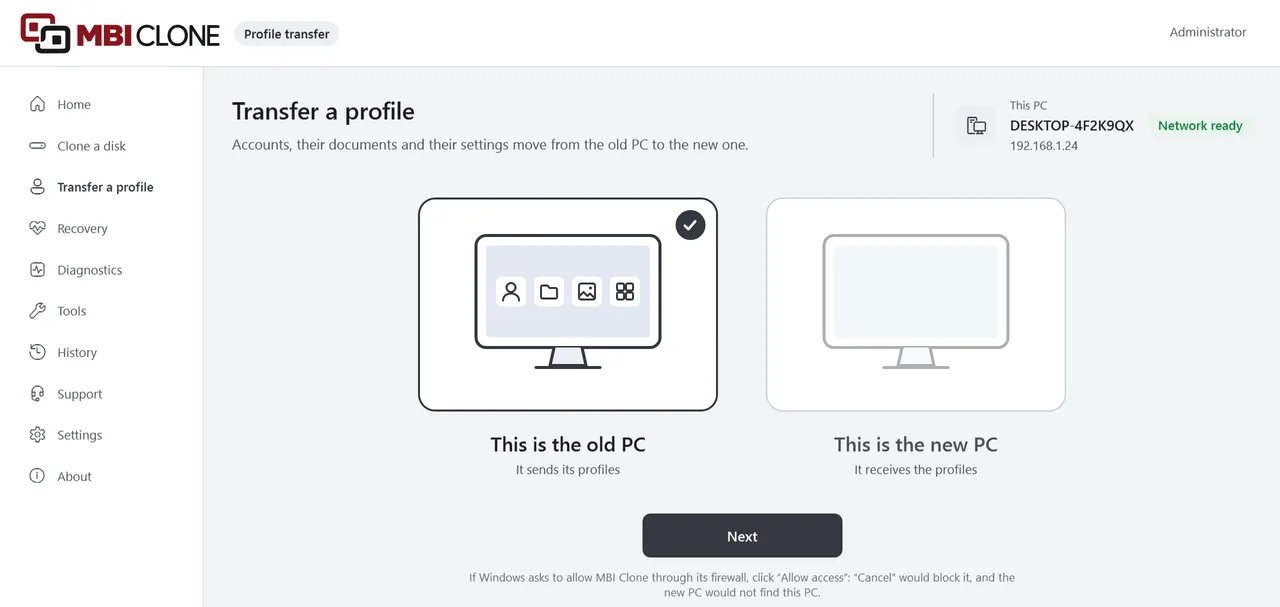
MBI Clone transfers one or more profiles in two ways:
- With the old disk, connected to the new PC in a USB enclosure or a dock. The old PC does not need to start.
- Over the network, with both PCs switched on. The new PC finds the old one, and a 6-digit security code appears on both screens: nothing is sent until you have checked that it is the same.
The profile goes into a new local account, or into an account already in use on the new PC, Microsoft account included. In that case, the files are added: nothing is overwritten, and a duplicate file arrives alongside, marked “(old PC)”.
What is carried over:
- documents, folders created by the customer and the
AppDatafolder; - saved passwords from Chrome, Edge and Windows, if you give the old Windows password. Firefox passwords are carried over in every case;
- Outlook files stored outside the profile, with a simple tick box;
- printers, reinstalled with the old PC’s driver;
- over the network, the Wi-Fi networks you tick, with the customer’s agreement.
At the end, a “To do with the customer” list says what is left to redo, and a sheet is printed for the customer.
What is never carried over
- The PIN and Windows Hello (face, fingerprint): to be set up again.
- Installed software: to be reinstalled. MBI Clone offers to install in one go the programs that can install themselves.
- “Online-only” OneDrive files: they come back when the customer reconnects OneDrive.
- With the old disk, the Wi-Fi keys: they belong to the old PC, not to the profile. MBI Clone names the networks, so that you know which keys to ask for.
Pitfalls
- The new account’s password: have the customer change it themselves (Ctrl+Alt+Del, “Change a password”). Do not reset it from an administrator account: their saved passwords would become unreadable.
- Folders moved to another disk (Documents on D:, for example): they are not in the profile. MBI Clone flags them; it is up to you to tick them.
- A company account (Microsoft Entra ID): this is a job for the company’s IT department; MBI Clone does not support it.
- A worn old disk: run its health check first, and copy what can be read before it fails.
Common questions
Does the customer keep their Microsoft account?
Yes. The simplest way is to add the old profile to the Microsoft account already in use on the new PC: their files and settings are added to it.
Are their saved passwords carried over?
Yes, with the old Windows password. Without it, the “To do with the customer” list says so: they will have to be entered again. The customer may still need to sign in to some websites again.
Is the old PC modified?
No. Its files are read, never modified.
See also
Convert MBR to GPT while cloning to a new SSD · PC won’t boot after cloning · Clone a BitLocker-encrypted disk · Extend C: when the recovery partition is in the way · All guides
To try MBI Clone in your workshop: request a free 30-day licence, on every computer.